
Best Home Office Products for Remote Workers: A Practical Buying Guide
Build a practical home office with the right desk, chair, monitor, keyboard, mouse, webcam, headset, lighting and organization tools. Learn what features matter before you buy.
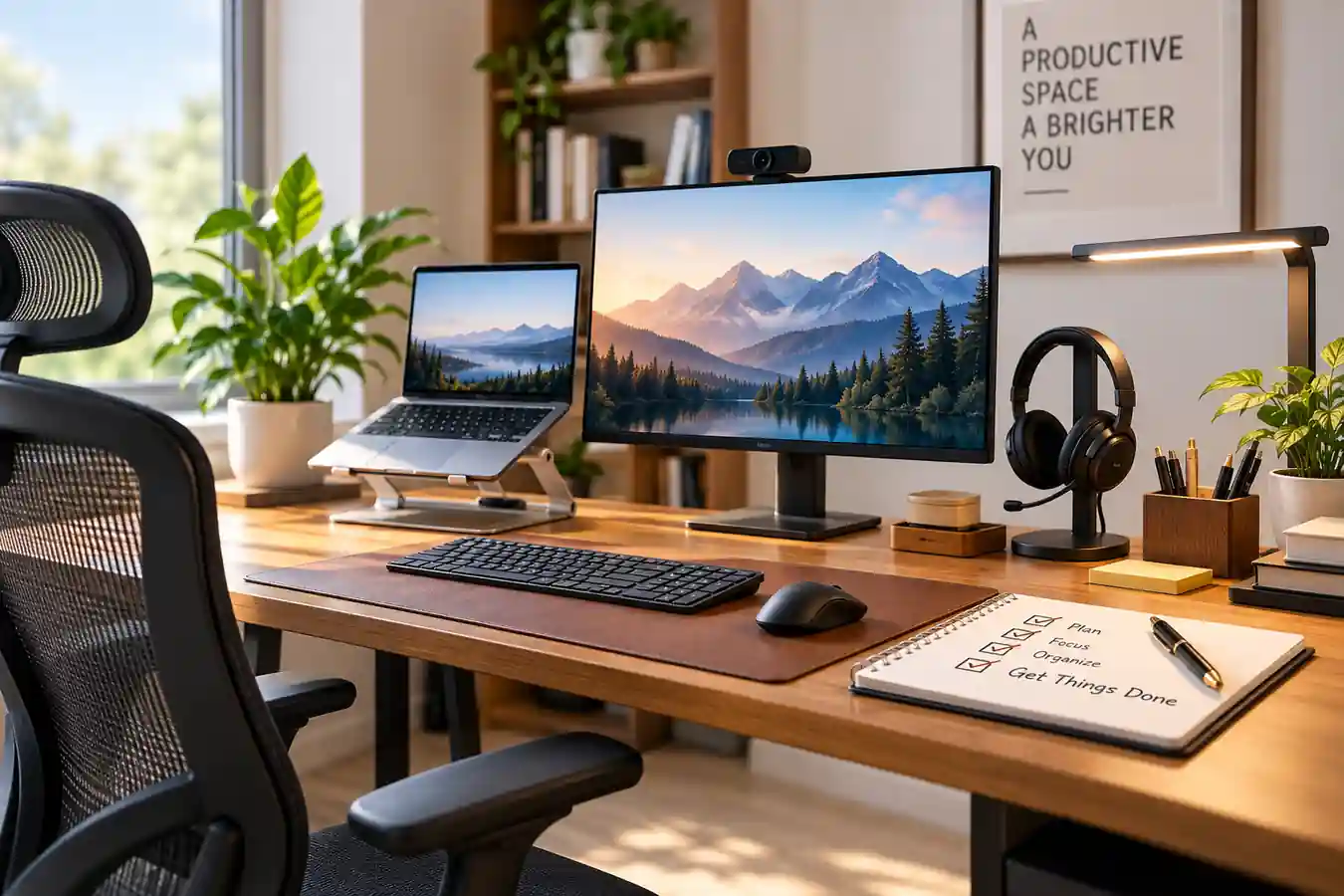
Remote work doesn't require a desk covered with expensive gadgets. It requires a setup that makes your everyday work easier.
For some people, that starts with a proper desk and chair. For others, the biggest problem is a low laptop screen, poor lighting, an unreliable webcam, or a pile of cables competing for space.
The right approach is to identify the friction points in your workday and upgrade those first.
This guide covers the major home office categories - from desks and chairs to monitors, keyboards, webcams, lighting, organization, and whiteboards - and explains what specifications matter, what to avoid, and when spending more makes sense.
For broader career and financial planning resources, see CoreAdorn's Personal Finance & Career guide.
Quick Answer: What Do You Actually Need for a Home Office?
For most remote professionals, the essential setup is relatively small:
- Desk: Enough surface area for your monitor, keyboard, mouse, and everyday work.
- Office chair: Adjustable seat height, appropriate support, and a configuration that fits your body and desk.
- Monitor: A size and resolution appropriate for your work, with useful height adjustment or a compatible monitor arm.
- Laptop stand: Useful if you work from a laptop and want the screen positioned independently from your keyboard.
- Keyboard and mouse: Choose based on typing volume, hand position, connection type, and comfort.
- Webcam: Important if video meetings are a regular part of your job.
- Headset: Particularly useful when you need reliable microphone performance or work around household noise.
- Desk lamp: Helps provide consistent workspace lighting without relying entirely on overhead lighting.
- Cable management: Keeps chargers, monitor cables, and peripherals organized and accessible.
- Desk organization: Reduces the amount of physical clutter competing for workspace.
- Whiteboard: Useful for visualizing projects, priorities, diagrams, and reminders.
- Productivity accessories: Add only the items that solve an actual problem.
You don't need to purchase everything at once. For many professionals, fixing the desk, chair, screen position, and lighting first makes more sense than buying premium peripherals immediately.
When you buy through links on our site, we may earn an affiliate commission at no extra cost to you. This helps support our work.
Who This Article Is For
This guide is intended for U.S. remote and hybrid workers including:
- Corporate employees
- Managers
- Software developers
- Designers
- Consultants
- Accountants
- Sales professionals
- Recruiters
- Writers
- Freelancers
- Entrepreneurs
- Students working remotely
- People building a home office for the first time
It is also useful if you already have a home office but want to upgrade it without replacing everything.
If organization is your main challenge rather than equipment, our guide to productivity planners for busy professionals may be more useful than buying another desk accessory.
How to Build a Home Office Without Overspending
A common mistake is buying individual products without thinking about how they work together.
A monitor may be excellent but too low on the desk.
A laptop stand may raise the screen but leave the keyboard at an uncomfortable height.
A large desk may provide plenty of space but leave cables hanging everywhere.
A powerful webcam may still produce a poor image if the room is badly lit.
Think about the workstation as a system.
- Decide where the workstation will go.
- Choose the desk.
- Choose the chair.
- Position the screen.
- Add keyboard and mouse.
- Improve lighting.
- Add webcam and headset if needed.
- Organize cables.
- Add storage and productivity accessories.
This also makes budgeting easier because you can identify which upgrade solves your biggest problem instead of buying everything simultaneously.
Home Office Desk
What problem does it solve?
A proper desk gives you a stable, appropriately sized work surface for your computer, monitor, keyboard, mouse, documents, and other equipment.
Who needs it?
Almost every full-time remote worker needs a dedicated or semi-dedicated work surface.
You don't necessarily need an expensive office desk. A sturdy table can work if it has the right dimensions and height for your setup.
What features matter?
- Appropriate width
- Sufficient depth
- Stable construction
- Suitable desk height
- Adequate weight capacity
- Cable-management options
- Durable surface
- Enough room for your monitor configuration
If you're considering a standing desk, look at the height range, frame stability, lifting mechanism, desktop size, control system, and weight capacity.
What should buyers avoid?
- Shallow desktops
- Wobbly frames
- Insufficient legroom
- Poor-quality construction
- Desks that cannot accommodate your monitor arrangement
- Fixed heights that don't work with your chair
Also check the actual desktop dimensions rather than relying on product photos.
What price/value considerations matter?
A basic desk can be sufficient if it is stable and appropriately sized.
Spend more when you need electric height adjustment, larger desktop space, better stability, higher weight capacity, or a particular configuration such as an L-shaped workstation.
Office Chair
What problem does it solve?
An office chair provides an adjustable seating platform for long periods of desk work.
The goal isn't simply to find the softest chair. A chair needs to fit your body and allow useful adjustments.
Who needs it?
Anyone spending substantial time working at a desk should pay attention to the chair.
What features matter?
- Seat-height adjustment
- Seat depth appropriate for your legs
- Backrest support
- Adjustable armrests where useful
- Recline or tilt adjustment
- Stable base
- Appropriate seat width
- Breathable materials if preferred
- Weight capacity appropriate for the user
What should buyers avoid?
- Chairs with fixed armrests
- Very shallow or very deep seats
- Unsubstantiated ergonomic marketing claims
- Chairs with no useful adjustment information
- Extremely cheap chairs with unclear warranty or return policies
Don't assume that a chair marketed as ergonomic will fit every person.
What price/value considerations matter?
A chair is one category where paying more can make sense if you spend most of your workday seated.
Compare adjustment range, warranty, return policy, materials, seat dimensions, and user height recommendations where provided.
Monitor
What problem does it solve?
A separate monitor gives you a larger workspace than a typical laptop screen and can make multitasking more practical.
Who needs it?
A monitor is particularly useful for people who regularly work with spreadsheets, code, documents, design applications, research, multiple browser windows, or data dashboards.
What features matter?
- Screen size
- Resolution
- Panel type
- HDMI or DisplayPort
- USB-C where applicable
- USB hub
- Power delivery
- Height adjustment
- VESA compatibility
What should buyers avoid?
Avoid paying for gaming features that aren't relevant to your work. Also check whether your laptop can actually drive the resolution and refresh rate you want.
What price/value considerations matter?
For office work, prioritize text clarity, connectivity, adjustability, appropriate size, and resolution.
Laptop Stand
What problem does it solve?
A laptop stand raises the laptop display so it can be positioned separately from the keyboard.
Who needs it?
Consider one if you work from a laptop every day, use an external keyboard, connect a separate mouse, want a cleaner two-screen setup, or need to adjust the laptop screen height.
What features matter?
- Adjustable height
- Adjustable viewing angle
- Stable base
- Appropriate laptop compatibility
- Foldability if portability matters
- Ventilation
- Weight capacity
What should buyers avoid?
Avoid stands that flex under the laptop, have unstable bases, block necessary vents, or don't support your laptop's size or weight.
What price/value considerations matter?
You don't need an expensive stand if a simple fixed-height model solves the problem.
Keyboard
What problem does it solve?
An external keyboard allows you to position your hands independently from the laptop screen.
Who needs it?
Most people using a laptop stand for extended work sessions should consider an external keyboard.
What features matter?
- Key switch type
- Key travel
- Layout
- Full-size versus compact design
- Wireless versus wired connectivity
- Backlighting
- Multi-device support
- Battery or charging method
- Operating-system compatibility
What should buyers avoid?
Don't buy a keyboard simply because it is marketed as mechanical or ergonomic. Your typing style, noise tolerance, desk space, operating system, and connectivity needs matter more.
What price/value considerations matter?
Basic keyboards can handle ordinary office work. Premium models can make sense for people who type for many hours, switch between devices, or value quieter operation and programmable features.
Mouse
What problem does it solve?
A dedicated mouse can provide more precise control than a laptop trackpad and may make extended computer work more convenient.
Who needs it?
Most desktop-based remote workers will find a mouse useful.
What features matter?
- Shape
- Hand size compatibility
- Button placement
- Scroll wheel
- Wired or wireless connection
- Battery life
- Sensor performance
- Multi-device support
- Programmable buttons
What should buyers avoid?
Avoid buying based on DPI numbers alone. Extremely high sensitivity isn't automatically useful for office work.
What price/value considerations matter?
A basic mouse can be perfectly adequate for email and documents. Spend more if you regularly work with large spreadsheets, creative software, multiple computers, or complex applications.
Webcam
What problem does it solve?
A dedicated webcam can improve video quality and framing compared with some built-in laptop cameras.
Who needs it?
Consider one if video meetings are an important part of your job.
What features matter?
- Resolution
- Frame rate
- Autofocus
- Exposure handling
- Field of view
- Microphone quality
- Privacy shutter
- Mounting options
- USB connection
- Software compatibility
What should buyers avoid?
Avoid inflated megapixel claims without useful video specifications, extremely wide fields of view when you sit close to the camera, and webcams that require software you cannot install on a managed work computer.
What price/value considerations matter?
If you only attend occasional internal meetings, a basic 1080p webcam may be sufficient. For frequent client calls or professional presentations, additional image controls and better low-light performance may justify spending more.
Headset
What problem does it solve?
A headset combines headphones and a microphone, giving remote workers a dedicated communication device.
Who needs it?
Consider a headset if you attend frequent video meetings, work in a shared room, need hands-free calls, move between home and other locations, or need clearer microphone performance.
What features matter?
- Microphone quality
- Noise reduction
- Comfort
- Wired versus wireless
- Battery life
- USB compatibility
- Bluetooth compatibility
- Multi-device support
- Meeting-platform compatibility
What should buyers avoid?
Don't automatically buy a music-focused headset for business calls. A headset with excellent music reproduction may not have the microphone behavior or meeting features you need.
What price/value considerations matter?
For occasional calls, a basic wired USB headset can provide good value. For people who spend hours in meetings or work in changing locations, wireless connectivity, comfort, and microphone performance can justify a higher price.
Desk Lamp
What problem does it solve?
A desk lamp provides consistent local lighting for your workspace. It can also reduce dependence on a single overhead light source.
Who needs it?
- People working early or late
- People who write on paper frequently
- People with dim workspaces
- People dealing with reflections near windows
- People who want more consistent video-call lighting
What features matter?
- Adjustable brightness
- Adjustable color temperature
- Flexible positioning
- Stable base
- Appropriate light spread
- Easy controls
What should buyers avoid?
Avoid lamps that create strong screen glare, take up too much desk space, have limited adjustment, or produce distracting reflections.
What price/value considerations matter?
You don't need an expensive lamp for basic workspace illumination. Premium monitor light bars make more sense when desk space is limited or when you specifically want screen-oriented lighting.
Cable Management
What problem does it solve?
Cable management reduces the mess created by laptop chargers, monitor cables, USB cables, headset cables, power strips, Ethernet cables, and charging cables.
Who needs it?
Almost every workstation eventually benefits from some cable organization.
What features matter?
- Under-desk cable trays
- Cable sleeves
- Adhesive clips
- Velcro ties
- Cable boxes
- Cable labels
- Desk grommets
What should buyers avoid?
Avoid permanently gluing everything into place before you know how your setup will evolve.
What price/value considerations matter?
Cable management is one category where inexpensive products can work extremely well.
Desk Organization
What problem does it solve?
Desk organizers give frequently used items a designated location.
Who needs it?
Anyone whose desk regularly accumulates small items can benefit from simple organization.
What features matter?
- Appropriate compartments
- Small footprint
- Easy access
- Stable construction
- Compatibility with your desk size
What should buyers avoid?
Avoid organizers that take up more space than the items they are supposed to organize.
What price/value considerations matter?
Basic plastic, metal, bamboo, or mesh organizers can all work. Focus on configuration rather than branding.
Whiteboards
What problem does it solve?
A whiteboard provides a visible surface for temporary information such as project plans, brainstorming, to-do lists, diagrams, meeting notes, weekly priorities, and deadlines.
Who needs it?
Whiteboards are particularly useful for visual thinkers, project managers, developers, teachers, designers, and people who regularly sketch ideas.
What features matter?
- Size
- Surface quality
- Magnetic capability
- Wall mounting
- Frame
- Erasability
- Included accessories
What should buyers avoid?
Avoid oversized boards if you don't have a genuine use for them.
What price/value considerations matter?
Basic melamine boards can be inexpensive. Glass boards generally cost more but aren't necessary for everyone.
Productivity Accessories
Useful accessories can include monitor arms, footrests, desk mats, headphone stands, phone stands, USB hubs, laptop docking stations, external storage, wrist rests, document holders, and pen holders.
The key question is simple: What problem does this accessory solve?
If you cannot answer that, you probably don't need it.
Monitor Arms
A monitor arm can free desk space and make screen positioning easier.
Check VESA compatibility, monitor weight, monitor size, desk thickness, and clamp clearance.
USB Hubs and Docking Stations
These can be useful when your laptop has limited ports.
Look at USB-C compatibility, power delivery, HDMI or DisplayPort support, Ethernet, SD card slots, and the number and type of USB ports.
Don't assume every USB-C hub supports every USB-C feature.
Home Office Products by Use Case
| Product | Best For | Key Conside - ration |
|---|---|---|
| Adjustable standing desk | Professionals wanting sit/stand flexibility | Check height range, stability, desktop size and weight capacity |
| Ergonomic office chair | Full-day desk workers | Fit and adjustability matter more than appearance |
| 27-inch 4K monitor | Text-heavy and multitasking work | Check laptop compatibility and port selection |
| Laptop stand | Laptop-based workers | Pair it with an external keyboard and mouse |
| Productivity keyboard | Heavy typists | Choose key feel, layout and connectivity carefully |
| Productivity mouse | Daily computer work | Hand shape and comfort matter more than headline DPI |
| Dedicated webcam | Frequent video meetings | Lighting and framing matter alongside resolution |
| Business headset | Meeting-heavy workers | Prioritize microphone quality and comfort |
| Monitor light bar | Small or low-light desks | Check monitor compatibility |
| Cable tray or organizer | Multi-device workstations | Choose based on cable volume rather than appearance |
| Whiteboard | Visual planners and project work | Size should match the information you actually track |
How Much Should You Spend on a Home Office?
Spend More on High-Use Equipment
These are products you interact with for hours:
- Office chair
- Desk
- Monitor
- Keyboard
- Mouse
Fit and functionality matter more than decorative features.
Spend Moderately on Communication Equipment
Your needs determine the budget for webcams, headsets, microphones, and lighting.
Spend Less on Organization
You generally don't need expensive solutions for cable clips, cable sleeves, pen holders, small organizers, sticky notes, or basic whiteboards.
A Practical Home Office Upgrade Order
- Desk and chair: Create a stable, usable workspace.
- Screen position: Add a monitor or laptop stand if needed.
- Keyboard and mouse: Separate your input devices from the laptop when necessary.
- Lighting: Fix the room lighting before spending heavily on cameras.
- Communication: Add a webcam and headset if your job requires frequent video meetings.
- Organization: Deal with cables, documents, chargers, and accessories.
- Productivity extras: Add accessories only when you have a specific reason.
How to Choose the Right Home Office Products
1. What Is Currently Frustrating Me?
Identify whether your main issue is seating, screen size, lighting, cables, microphone quality, desk space, or organization.
2. How Many Hours Do I Use It?
A product used for six hours a day deserves more consideration than something used for ten minutes.
3. Will It Work With My Existing Equipment?
Check laptop ports, monitor connections, operating system, desk dimensions, VESA mounting, USB compatibility, and Bluetooth support.
4. Can I Buy a Simpler Version?
If a less expensive product solves the same problem, understand what you're paying for before upgrading.
5. Can I Return It?
This matters particularly for chairs, keyboards, mice, headsets, and monitor arms because physical fit and personal preferences are difficult to judge from a product page.
Who Should Invest in a Dedicated Home Office?
- You work remotely most days
- Your job requires long periods at a computer
- You regularly attend video meetings
- You manage multiple monitors or devices
- Your current workspace creates daily friction
- You expect to work remotely for the foreseeable future
Who May Not Need a Full Home Office Setup?
- You work remotely only occasionally
- You already have a comfortable desk and chair
- Your laptop meets your needs
- You rarely attend video meetings
- You move between locations frequently
- Your employer provides most of your equipment
A compact setup can be perfectly adequate.
Common Home Office Buying Mistakes
Buying Everything at Once
You may discover that half the accessories aren't necessary. Upgrade based on actual problems.
Prioritizing Appearance
A desk setup can look excellent in photographs while being uncomfortable to work at.
Buying the Biggest Monitor
A larger display isn't automatically better. Desk depth and viewing distance matter.
Ignoring Compatibility
Check ports, mounting standards, operating systems, and power requirements before ordering.
Buying an Expensive Webcam Before Fixing Lighting
Camera quality is only one part of a video call.
Buying a Chair Without Checking Dimensions
Seat depth, width, height range, and armrest position can matter considerably.
Underestimating Cable Management
A workstation with several devices can become difficult to maintain without a simple cable plan.
Buying Accessories Without a Job
Every accessory should solve a problem. If it doesn't, leave it off the shopping list.
Home Office Products and Productivity
A better workspace isn't a substitute for good planning.
Your equipment should support the way you work.
For example, someone who uses time blocking may benefit from a second monitor and a physical planner. Someone managing several projects may benefit from a whiteboard. Someone who spends most of the day in video calls may prioritize a headset and lighting.
If planning is your main challenge, see our guide to productivity planners for busy professionals .
If you're tracking career milestones, accomplishments, skills, and professional goals, a career planner can provide a more focused system.
For broader financial and career organization, return to the Personal Finance & Career guide .
Frequently Asked Questions
What are the most important home office products for remote workers?
For most full-time remote workers, start with the desk, chair, screen setup, keyboard, and mouse. After that, prioritize lighting and communication equipment based on your job. Cable management and organization become increasingly useful as the number of devices grows. You don't necessarily need premium versions of every category.
How much should I spend on a home office?
There is no universal budget. Spend according to how frequently you work from home and which problems you need to solve. Someone working remotely every day may justify spending more on a chair, desk, and monitor than someone working from home once a week. Set a total budget first and prioritize high-use equipment.
Is a standing desk worth it for remote work?
A standing desk can provide the ability to alternate between sitting and standing, but it isn't necessary for every remote worker. If you want one, evaluate height range, stability, desktop size, weight capacity, and control quality. A well-built fixed desk can still be an appropriate choice if you don't need height adjustment.
Do I need a 4K monitor for working from home?
Not necessarily. A 4K monitor can provide sharp text and additional workspace, but many office tasks don't require 4K. Consider screen size, viewing distance, resolution, connectivity, and your laptop's capabilities together. For basic email and document work, a lower-resolution display may provide sufficient value.
Is a laptop stand necessary?
A laptop stand is not mandatory, but it can be useful if you use a laptop for several hours and want to raise the display while using a separate keyboard and mouse. The key is treating the laptop as a screen rather than trying to type comfortably on a laptop keyboard after raising it substantially.
Do I need a separate webcam if my laptop already has one?
Not always. A built-in webcam may be sufficient for occasional internal meetings. A dedicated webcam can make more sense for people who frequently meet clients, conduct interviews, present to groups, or want more control over framing and image quality. Lighting and camera positioning should also be considered before upgrading.
What should I prioritize when buying an office chair?
Focus on fit and adjustability. Check seat height, seat depth, seat width, back support, armrest adjustment, recline, and weight capacity. Also check the retailer's return policy because a chair that looks good online may not fit your body or working style comfortably.
Are expensive home office accessories worth it?
Sometimes, but not automatically. Premium spending is easier to justify when an item is used every day or solves a significant problem. A high-end chair, monitor, or headset may offer useful features for a particular user, while expensive cable clips or desk organizers usually provide less meaningful additional value.
Final Thoughts
A useful home office is not defined by how many products sit on the desk.
Start with the things that directly affect your everyday work: a suitable desk, a properly adjustable chair, a practical screen setup, comfortable input devices, and adequate lighting.
Then add communication equipment and organizational accessories based on your actual workload.
The best purchase is usually the one that solves a recurring problem without introducing unnecessary complexity.
For more resources connecting career decisions, productivity, and personal finances, explore CoreAdorn's Personal Finance & Career guide .
CoreAdorn is reader-supported. When you buy through links on our site, we may earn an affiliate commission.
0 Comments
Be the first to comment.
Leave a comment
Please use kind words and keep your comment on topic. Comments are reviewed by the CoreAdorn team before they appear.